
How secure release works
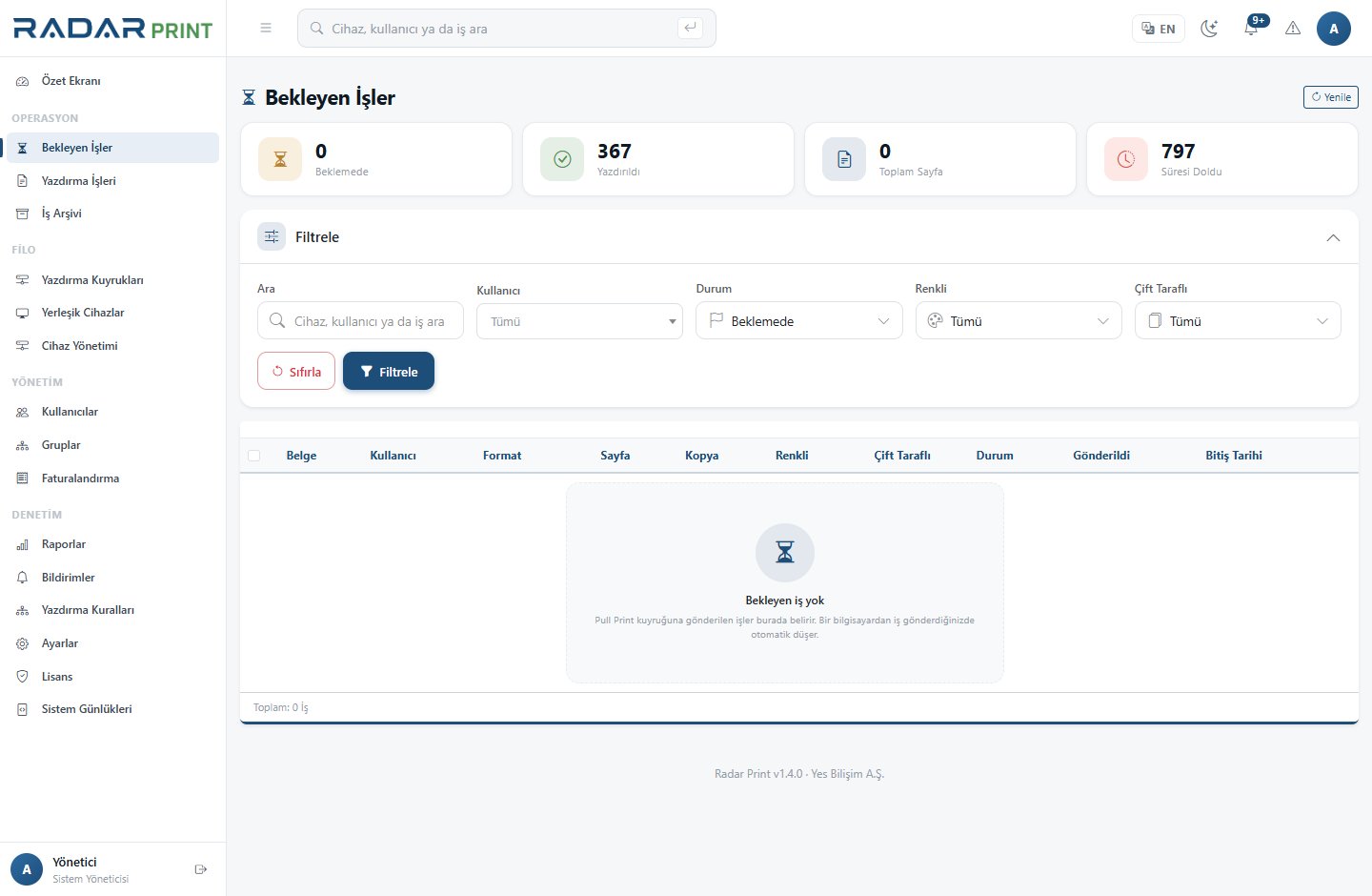
A user submits a document through the print path configured for RadarPrint. Instead of immediately reaching the output tray, the job remains in the held queue. The user authenticates at a compatible device and releases only the documents they need.
User steps
- Open Print in your application and select the queue specified by your organization.
- Check paper, color, duplex and copy settings, then submit the job.
- Sign in on the compatible device’s RadarPrint screen using a PIN or supported card method.
- Select the document in the held jobs list and review the options available on that device.
- Release the job, collect your pages and sign out.
If a job is missing
Check the selected queue and user mapping first. A job submitted from another Windows account may belong to another user. Check whether the job expired or has already been released. Ask an administrator to inspect its state instead of repeatedly submitting the same document.
Pilot verification
Test with two different users. Each should see their own jobs, and the report should identify the correct user. Confirm the card reader, printer language and panel capabilities for the specific device model.